
Embed Your Quiz on a Shopify Store
QuizyPilot has an official Shopify theme extension that lets you add a quiz directly inside any section of your store — no coding required.
Step 1 — Install the QuizyPilot App
If you haven't already, install the QuizyPilot app from the Shopify App Store. Once installed, it will automatically add the theme extension to your store.
Step 2 — Find Your Quiz Preview Key
Every quiz has a unique Quiz Preview Key that connects the Shopify block to your quiz.
- Log in to your QuizyPilot dashboard
- Open the quizzes page from sidebar
- Each quiz has three dot dropdown menue click on it and click on quiz key to copy the quiz key
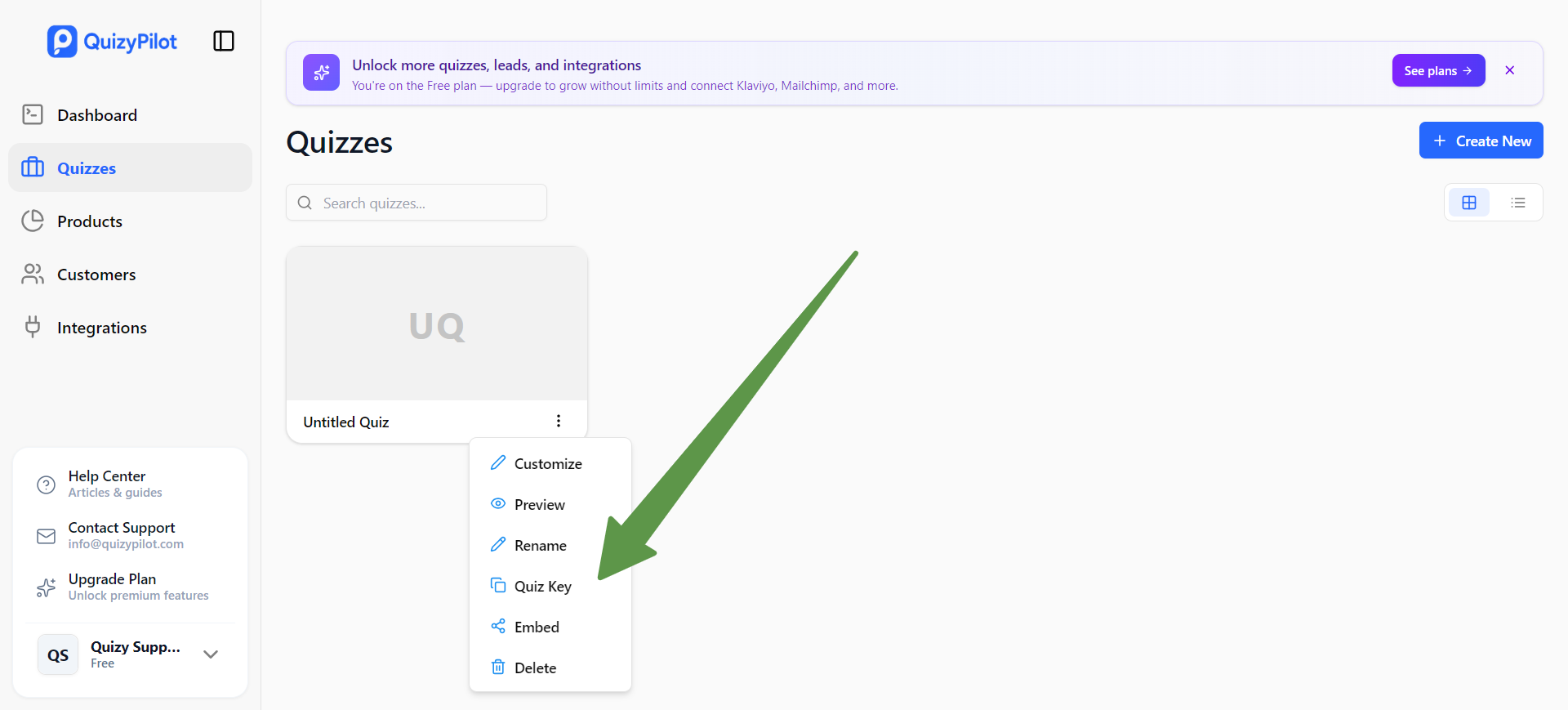 The key looks like a short string of letters and numbers, for example:
 S2V3X9
Tip: Each quiz has its own key. If you have multiple quizzes, make sure you copy the key for the correct one.
Step 3 — Add the Quiz Block to Your Shopify Theme
- Go to your Shopify Admin → Online Store → Themes
- Click edit theme on your active theme
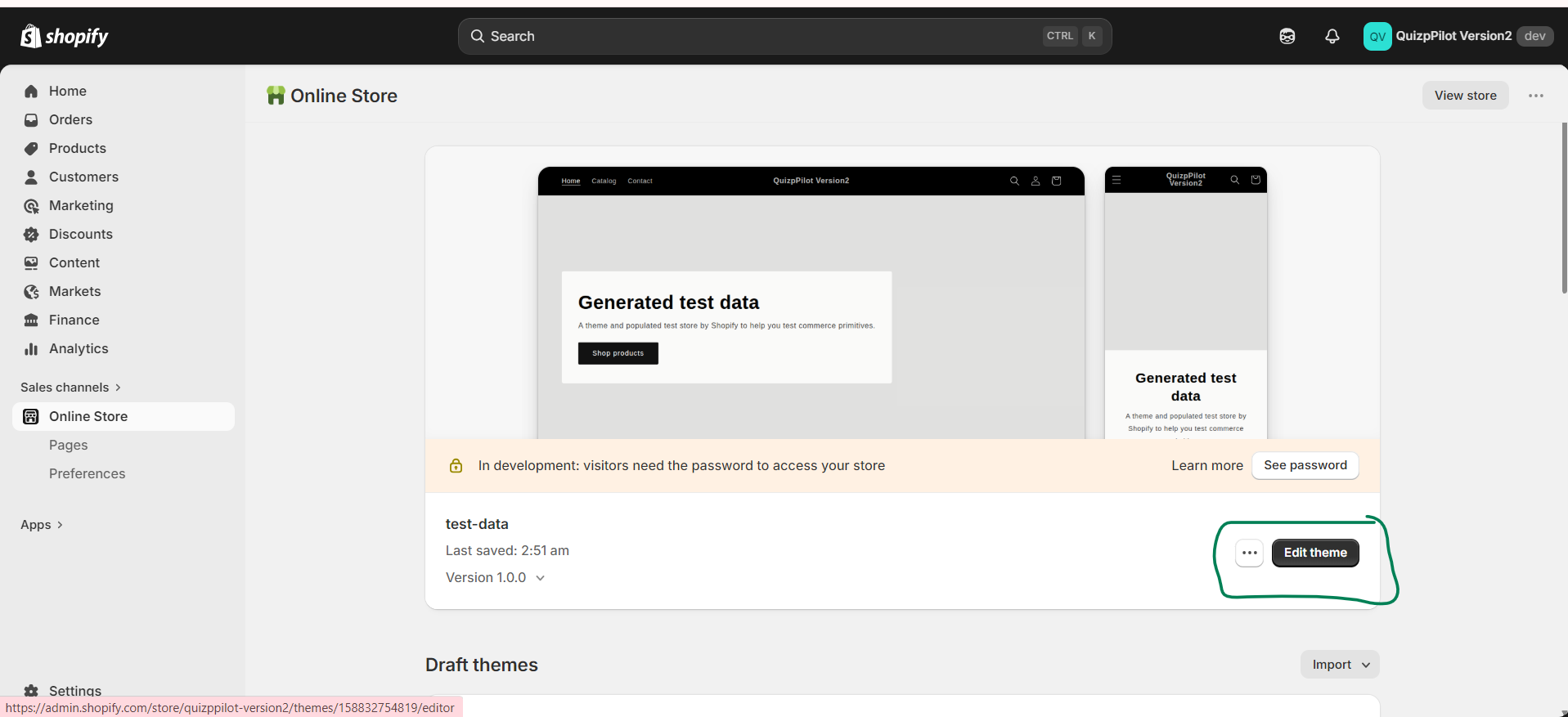
- Navigate to the page where you want to show the quiz (e.g. a product page or a landing page)
- In the left panel, click add section or Add App
- Search for "Quizy Pilot" and select the Quizy Pilot Widget block
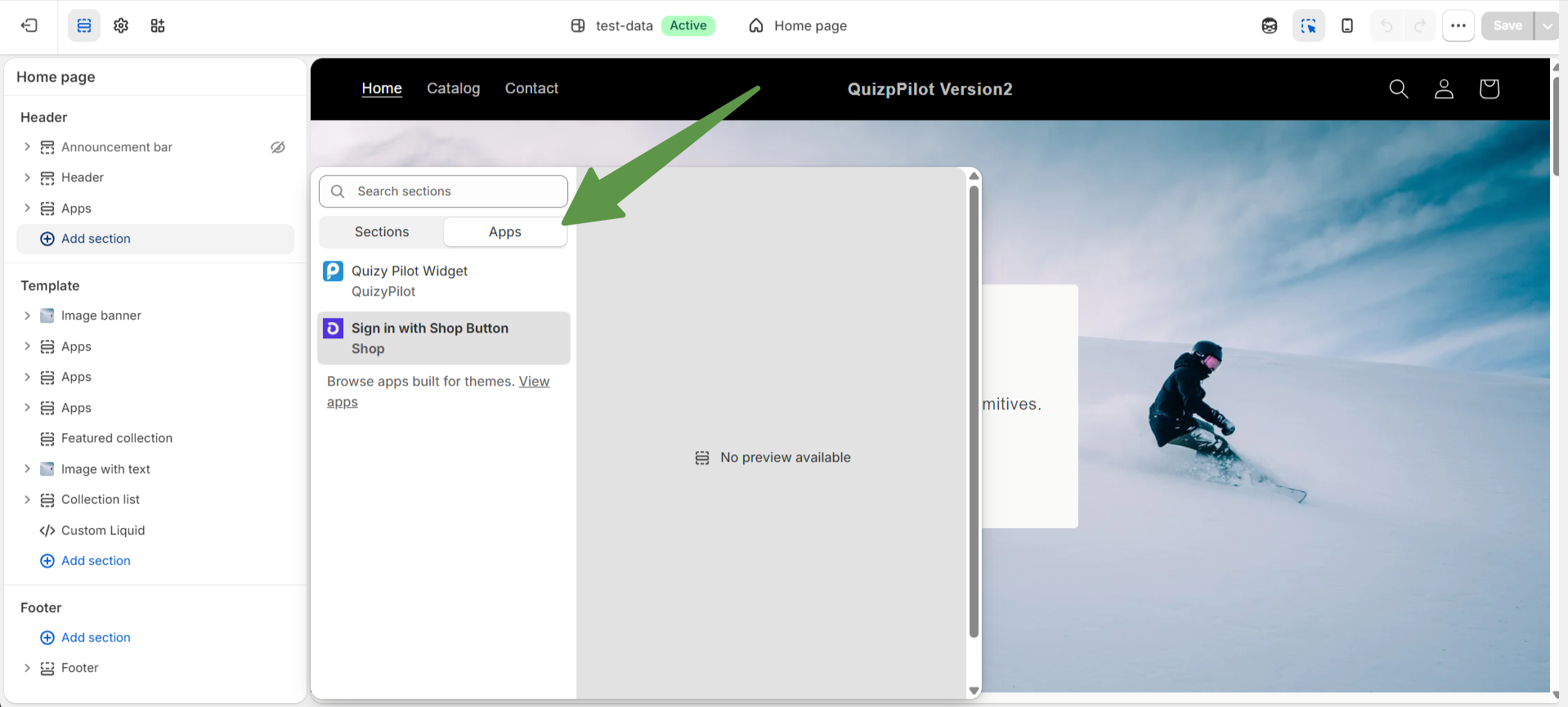
- The block will appear in your layout
Step 4 — Enter Your Quiz Key
With the block selected in the theme editor:
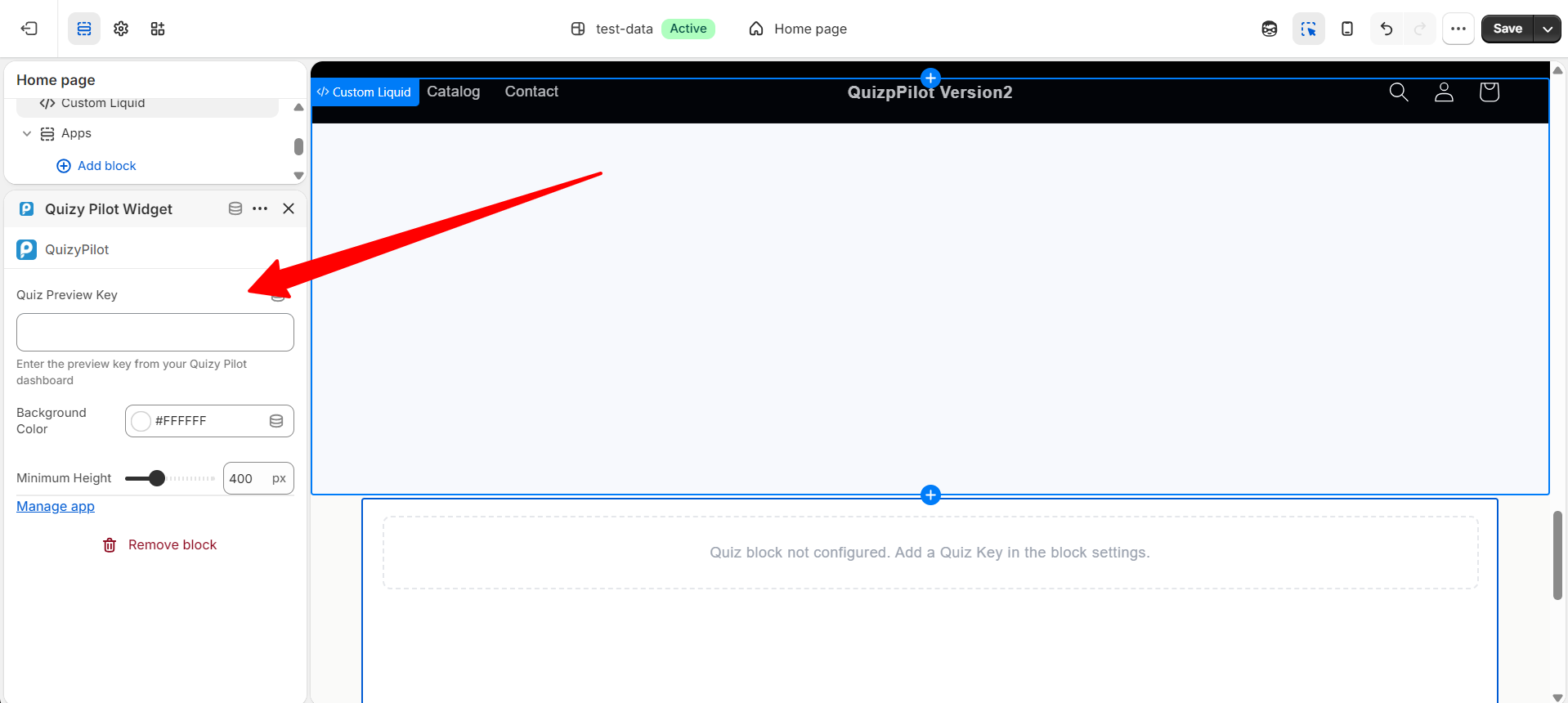
- In the right-hand settings panel, find the Quiz Preview Key field
- Paste the key you copied in Step 2
- The quiz will appear live in the preview
Step 5 — Customize the Block (Optional)
You can adjust these settings for the block:
| Setting | What it does | |---|---| | Quiz Preview Key | Links the block to your specific quiz | | Background Color | Sets the color shown while the quiz loads | | Minimum Height | Sets the block's minimum height before the quiz loads |
Step 6 — Save and Publish
Click Save in the top-right corner of the theme editor. Your quiz is now live on your store.
Troubleshooting
Quiz not showing?
- Double-check that the Quiz Preview Key is entered correctly (no extra spaces)
- Make sure the quiz is Published in your QuizyPilot dashboard
- Try clearing your browser cache and refreshing the page
Seeing "Quiz block not configured"?
- This means the Quiz Preview Key field is empty. Go back to the theme editor and paste your key.
Quiz shows but looks cut off?
- Try increasing the Minimum Height setting in the block
Need More Help?
Contact us at info@quizypilot.com or visit the QuizyPilot Help Center.