
How to Connect Your Quiz to Shopify
Connect Shopify with QuizyPilot to automatically create or update customers whenever someone completes your quiz. You can also apply customer tags and save the complete quiz responses directly to the customer's profile.
Before You Begin
Make sure you have:
- A QuizyPilot account
- A Shopify store connected to QuizyPilot
- At least one published quiz
Step 1: Open the Shopify Integration
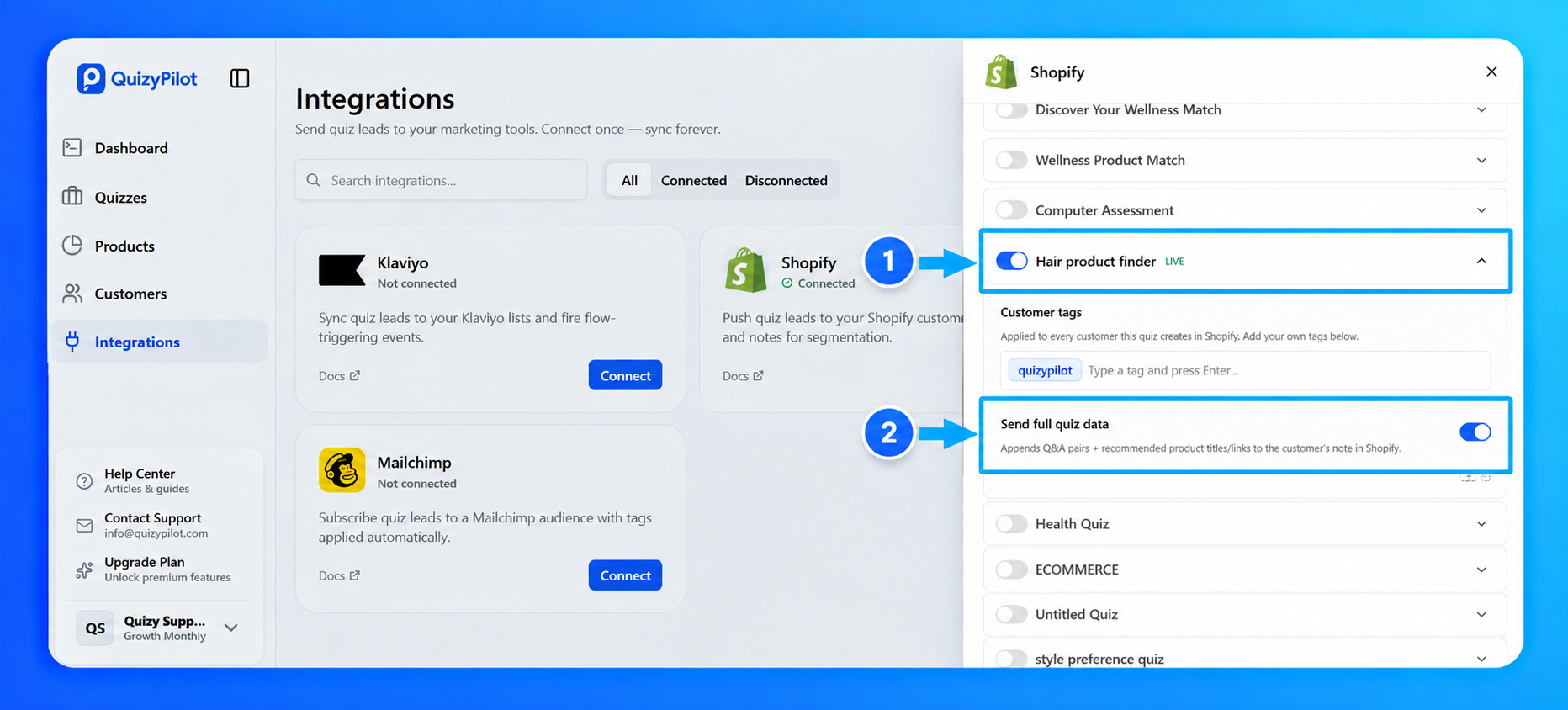
From your QuizyPilot Dashboard, go to Integrations.
Find Shopify and click Manage.
Step 2: Enable Shopify for Your Quiz
Choose the quiz you want to sync with Shopify.
Then:
- Enable the quiz.
- Add one or more Customer Tags (optional).
- Enable Send Full Quiz Data if you want the customer's quiz answers and recommended products saved to their Shopify customer notes.
Your settings are saved automatically.
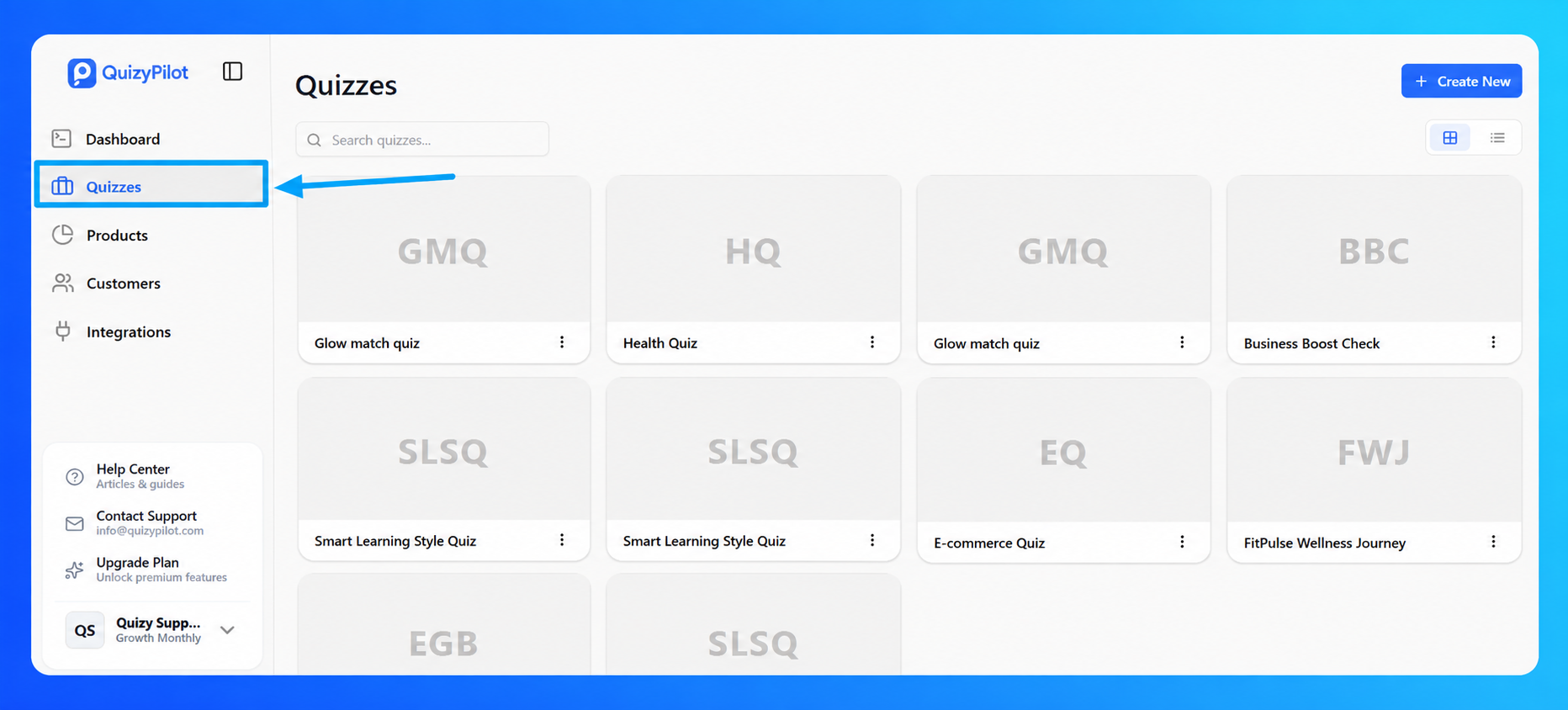
Step 3: Complete Your Quiz
Publish your quiz and submit a test response using a new email address.
Once the quiz is completed, QuizyPilot will automatically create or update the customer in your connected Shopify store.
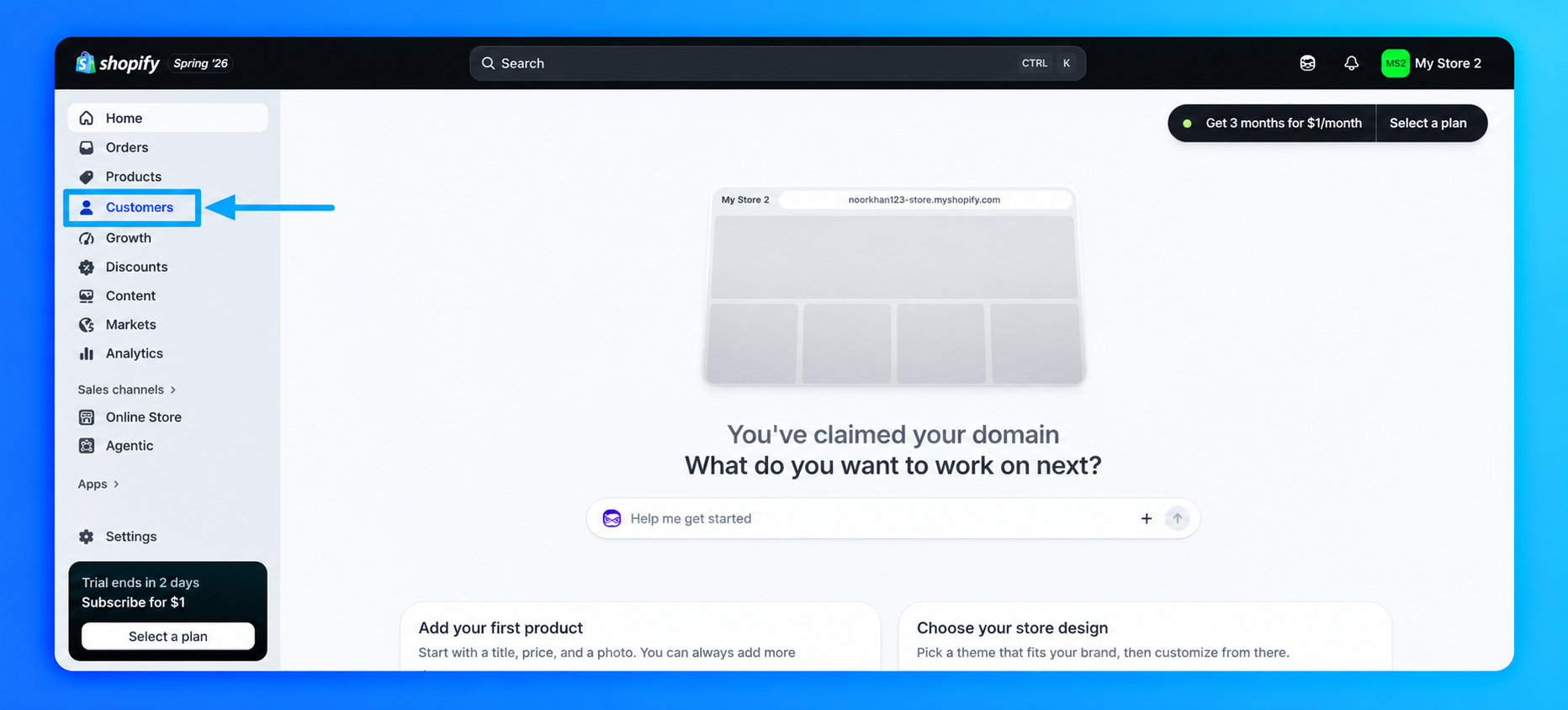
Step 4: Open Your Shopify Customers
Log in to your Shopify Admin.
From the left sidebar, click:
Customers
Here you'll find every customer created from your QuizyPilot quizzes.
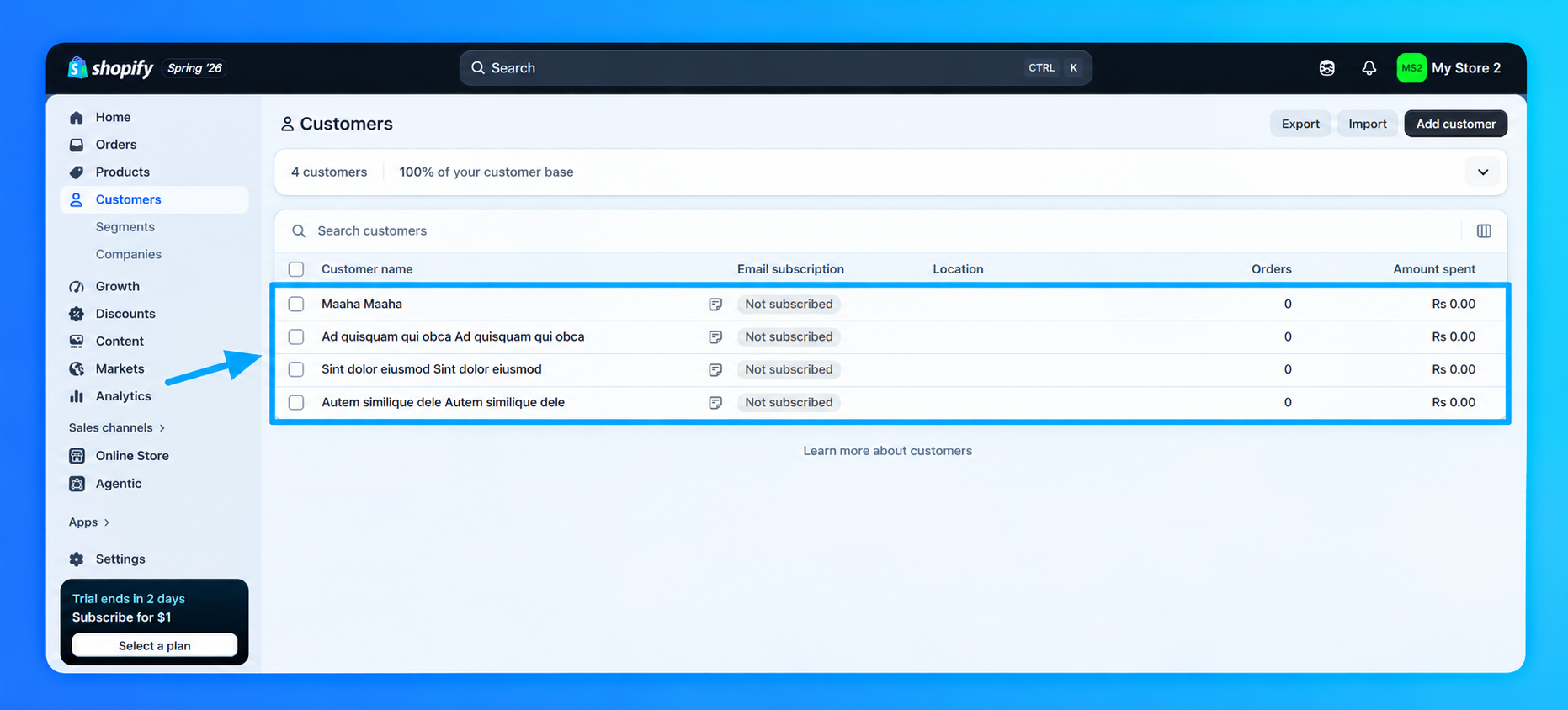
Step 5: View the Customer Profile
Click on the customer you want to view.
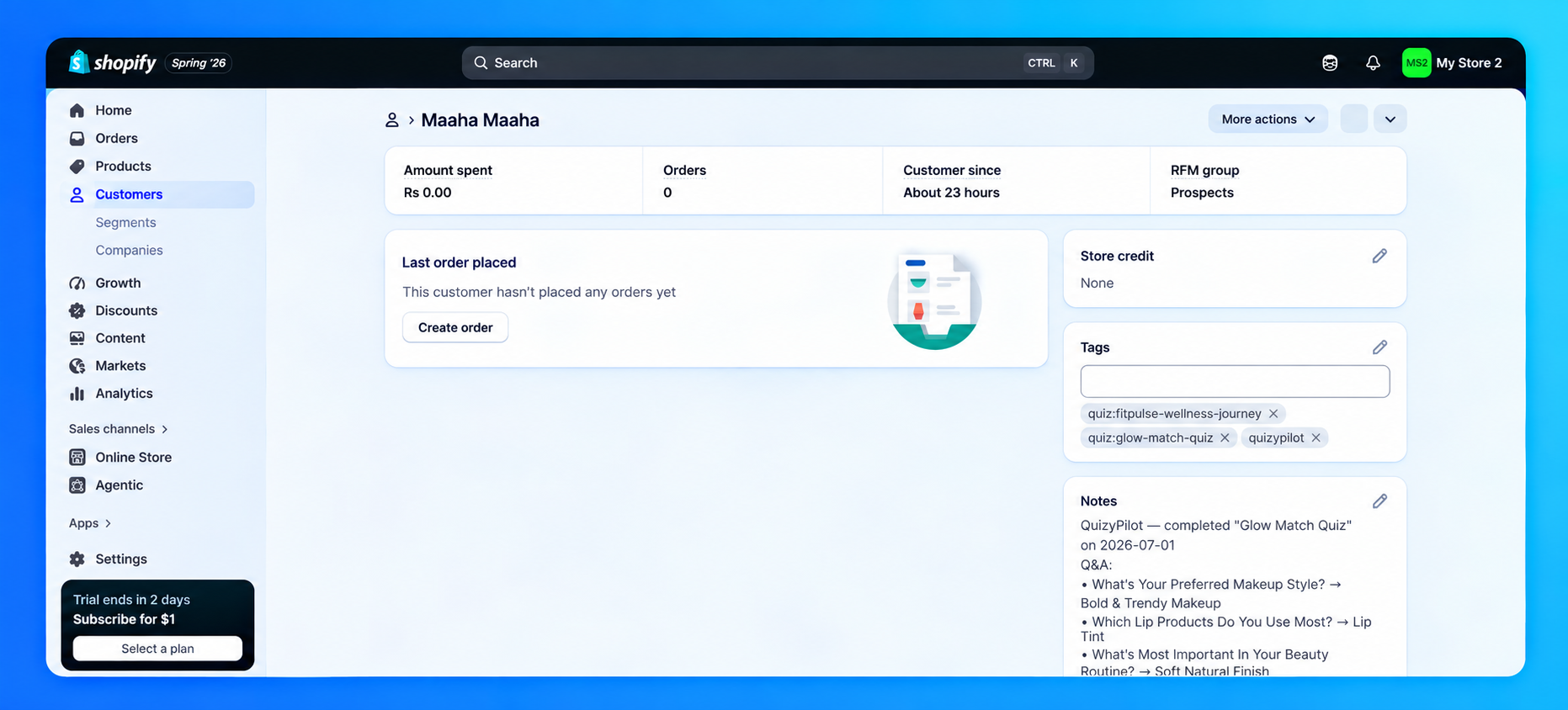
Inside the customer profile you'll find:
- Customer information
- Customer Tags
- Quiz completion notes
- Questions & Answers (when Send Full Quiz Data is enabled)
- Recommended products (if available)
This makes it easy to understand each customer's preferences and create more personalized marketing campaigns.
You're All Set!
Your QuizyPilot quiz is now connected to Shopify.
Every completed quiz submission will automatically:
- Create or update a Shopify customer.
- Apply your selected customer tags.
- Save the complete quiz responses to the customer's notes (when Send Full Quiz Data is enabled).
- Store recommended product information for future marketing and customer support.