
QuizyPilot makes it easy to build interactive Shopify quizzes with a simple drag-and-drop builder.
Follow these quick steps to create your first quiz.
Step 1: Open the Quiz Dashboard
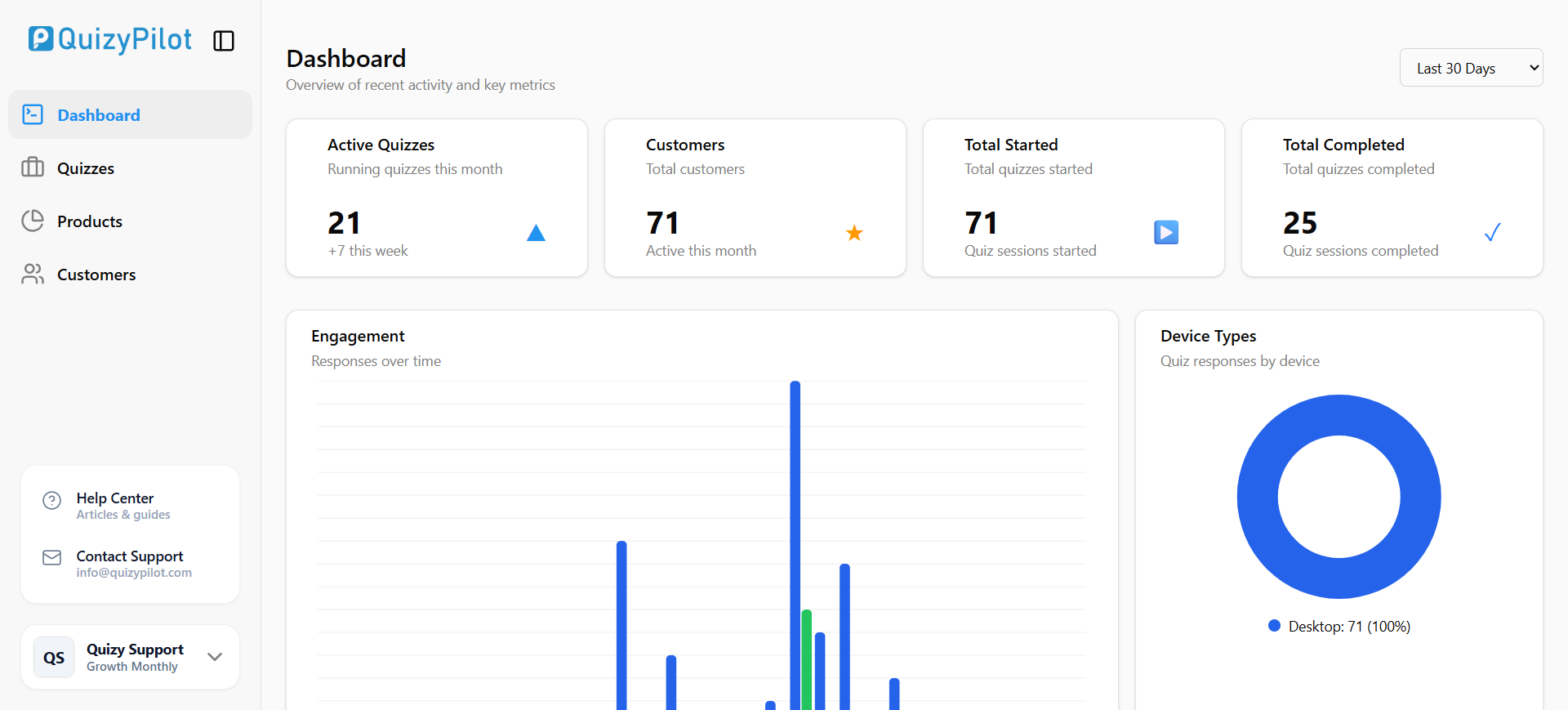
After logging into QuizyPilot, go to the dashboard and click Quizzes from the left sidebar.
This is where you can manage all your quizzes.
Step 2: Create a New Quiz
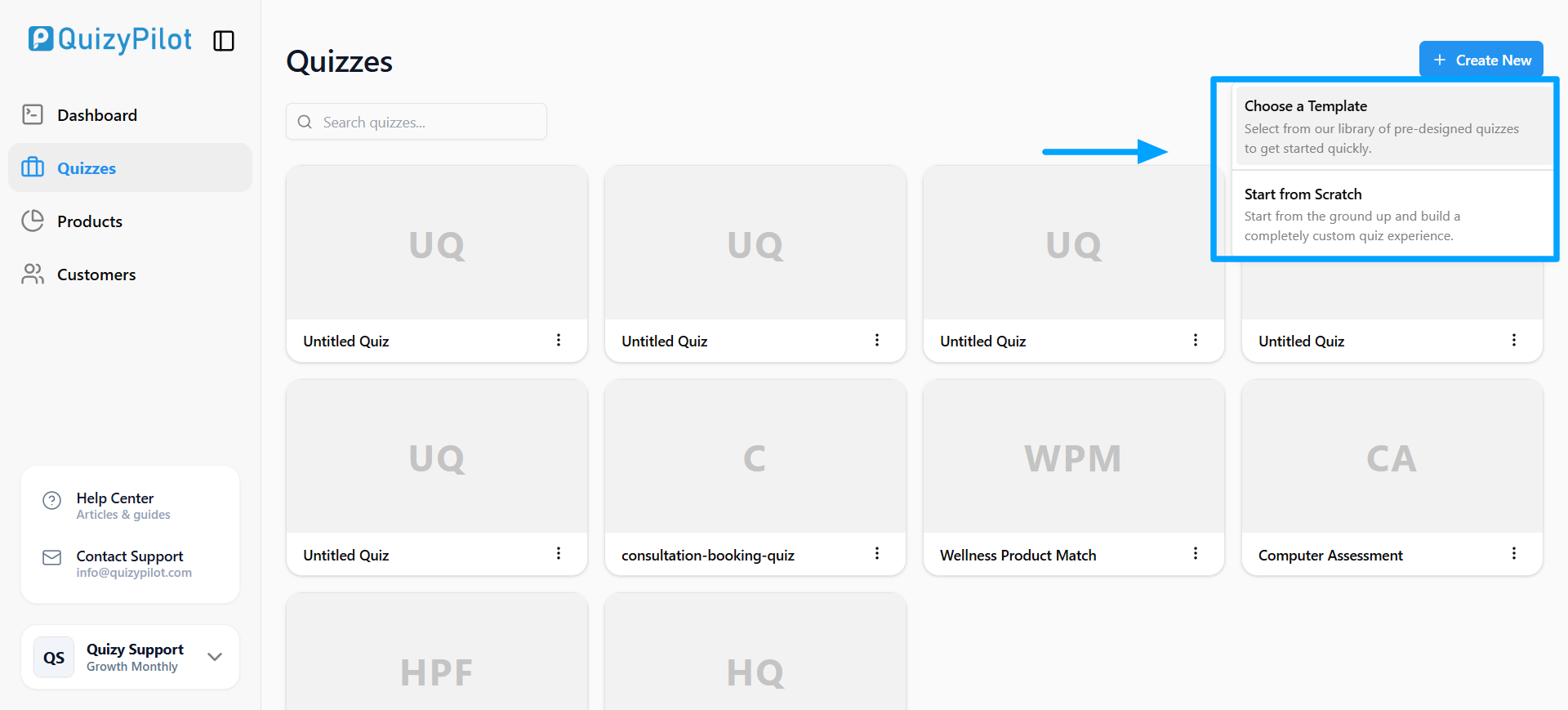
Inside the Quizzes page, click Create New.
You can either:
- Choose a ready-made template
- Start from scratch
Templates help you launch quizzes faster.
Step 3: Build Your Quiz Page
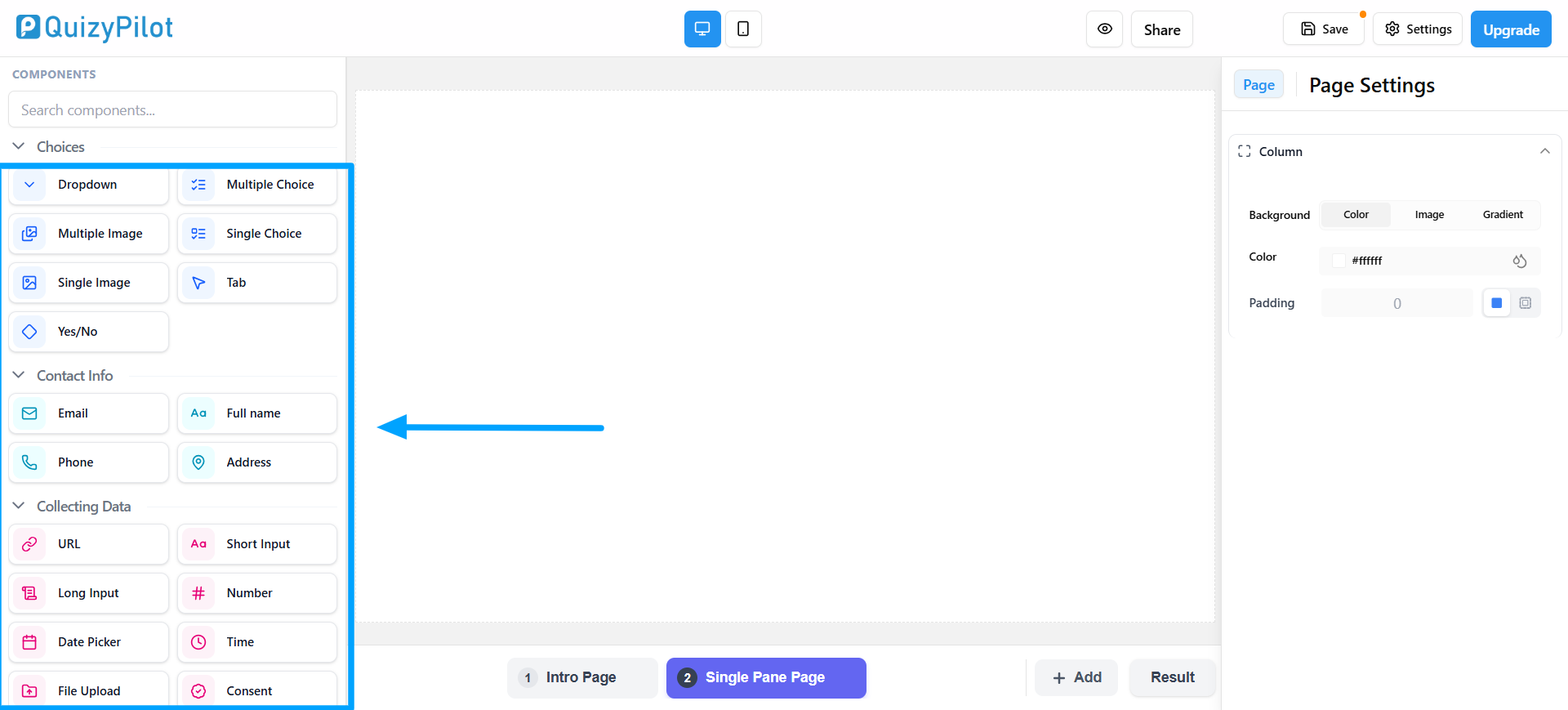
After creating the quiz, the builder opens.
From the left sidebar, you can add:
- Single Choice
- Multiple Choice
- Image Questions
- Dropdowns
- Input Fields
- Headings
- Paragraphs
The center area is your quiz canvas where questions are added.
Step 4: Choose Your Page Layout
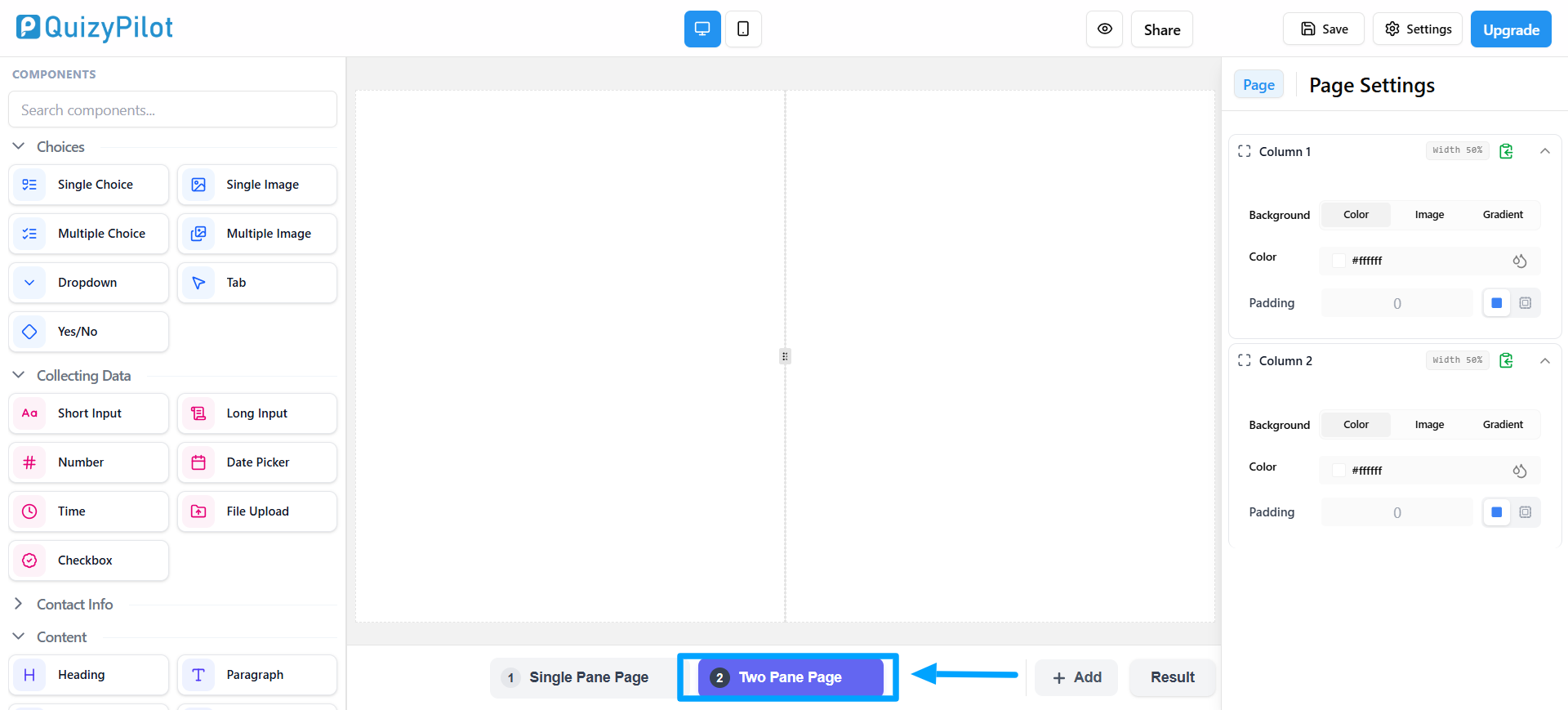
QuizyPilot offers two layout styles.
Single Pane Page
A simple full-width layout for clean quiz designs.
Two Pane Page
A split layout perfect for quizzes with images or product showcases.
Final Thoughts
QuizyPilot helps Shopify merchants create professional quizzes without coding.
With:
- Drag-and-drop components
- Flexible layouts
- Easy customization
—you can quickly build quizzes that improve engagement and increase conversions.